
PPI, DPI, and LPI: What Actually Decides Print Sharpness
If you have ever sent a photo off to print and felt a small knot of worry that it might come out soft or blurry because you got the settings wrong, then you have probably bumped into these acronyms. PPI. DPI. LPI. Ask three people what they mean and you will likely get three different answers, because even folks who use these terms every day tend to mix them up. The confusion has been around for ages. I first started writing these notes years ago, then set them aside because they felt like a dry school lesson, and that’s not my intention.
So let us skip that. What you actually need to know is simple: will my print look sharp, or will it look soft? And that answer rests on a rather simple idea.
The idea is this: sharpness is not a fixed thing. Print sharpness depends on how far away you hold the print. Keep that in the back of your mind, because we are going to come back to it.
PPI: The Only Number You Control
Let’s start with number that’s actually yours to control. PPI.
A digital photo is made of pixels, which are tiny squares of color. Stack enough of them together and your eye blends them into a smooth image. PPI stands for Pixels Per Inch, and it tells you how many of those tiny squares get packed into each inch of the printed photo. The more you pack into an inch, the smaller each one becomes (relative to the whole), and the smoother the result looks.
This is the one number in the whole conversation that you set yourself. And working it out is just simple division. Take how many pixels your image has across, and divide by how many inches wide you want to print it.
Say your photo is 6,000 pixels wide and you print it 20 inches wide. That is 300 pixels in every inch, so 300 PPI. Now print that exact same file at 40 inches wide instead. The same 6,000 pixels now have to cover twice the distance, so you get 150 PPI. You did not lose any pixels. You just spread them out, which made each one bigger.
DPI: The Printer’s Number, Not Yours
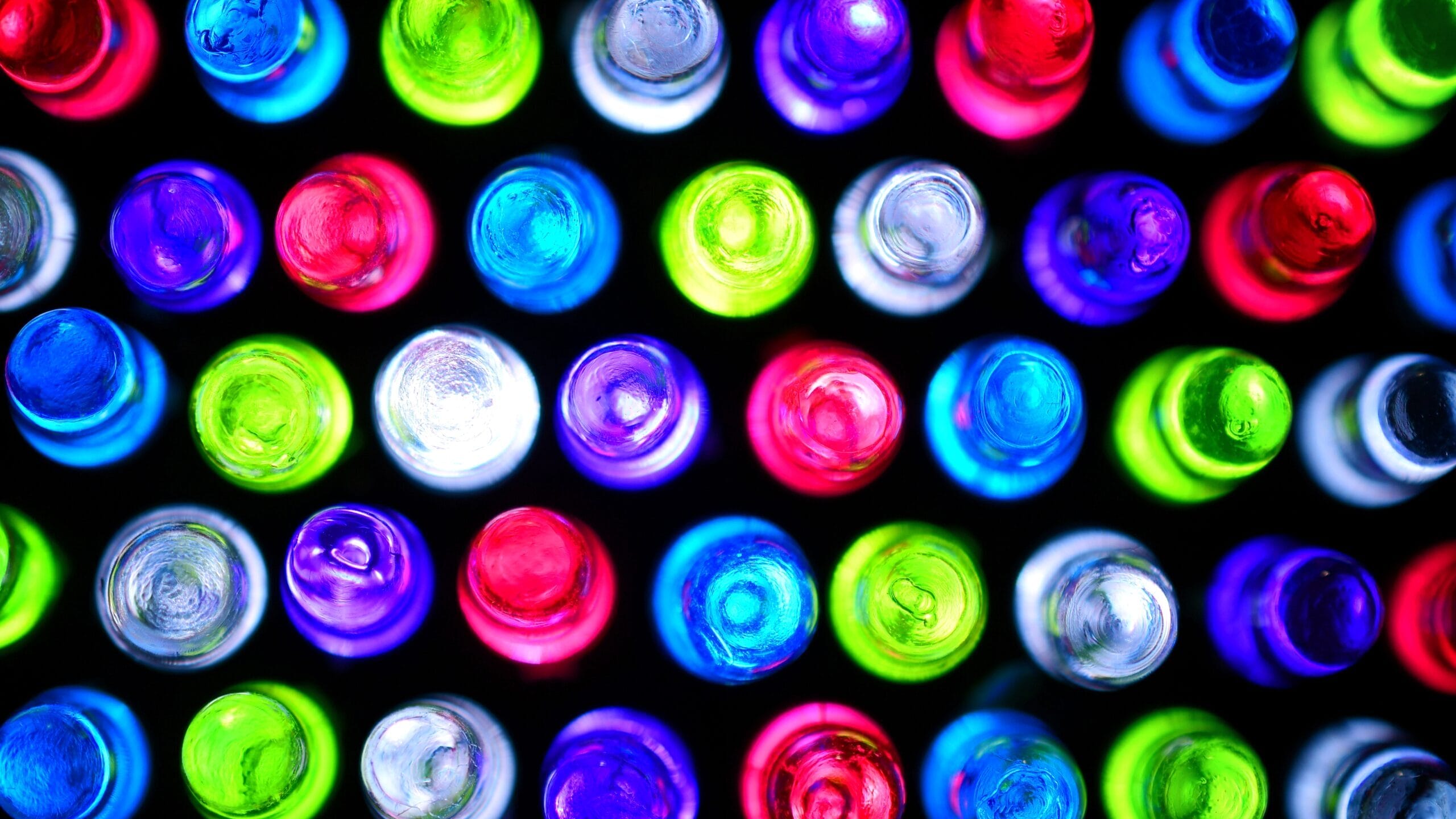
DPI stands for Dots Per Inch, and this is where a lot of the mix-up starts. It sounds almost identical to PPI, but it describes something completely different. DPI is about ink, not pixels. It tells you how many tiny dots of ink the printer sprays onto the paper in each inch.
If you look at the box your inkjet printer came in, you will probably see a big, impressive number, something like 1,440 or 2,880 or even 5,760 DPI. It is tempting to think your photo needs to match that. It does not, and here is why.
Your printer only has a handful of ink colors to work with, usually somewhere between four and a dozen. It cannot lay down one perfect dot in the exact shade of every pixel. So instead, it clusters lots of those tiny ink dots close together, in different colors, and lets your eye blend them into the single color the pixel is supposed to be. It takes many ink dots to reproduce just one pixel. That is the whole reason the dot number runs so high while your pixel number stays comparatively low. The two are measuring different jobs. PPI is the information you hand over. DPI is the printer’s way of physically painting it.
LPI: The Press’s Number
LPI stands for Lines Per Inch, and you will most likely never need it. It only shows up when you send work to a commercial offset printing press, the big machines that print magazines and books. Those presses build up color and tone using a grid of dots, and LPI counts how many rows are in that grid. Your PPI setting will need to correspond to the LPI count that the printer will be using.
For just about everything a serious amateur does, whether printing at home or ordering from a photo lab, LPI simply never comes up. If a press ever does ask, the rule of thumb is easy: send your image at about twice the LPI as a PPI number.
A magazine printed at 150 LPI wants roughly 300 PPI from you. That is the entire relationship, and you can comfortably forget it until the day someone asks.
Viewing Distance: The Idea That Ties It All Together
Now we come back to the thing I asked you to hold on to.
A dot of ink, or a pixel, looks fuzzy / coarse / pixelated, only if you can actually see it individually. And here is the surprising part: your eye does not measure things by their real size. It measures the angle they take up in your field of view.
That sounds abstract, so here is what it means in practice. The farther away something sits, the smaller it appears, and past a certain point it becomes too small for your eye to pick out at all. Your eye just can’t see things that are below a certain size.
This is the eye’s resolving capacity.
If you want the number behind this, a healthy eye can just make out detail about one arcminute wide, which is one sixtieth of a single degree. In plain terms, that is roughly a dot one hundredth of an inch across, about 0.25 mm, viewed from a yard away.
Move closer than that and the dot has to shrink to stay invisible to you. Move farther away and it is allowed to grow. So it is the size of the dot, not the sheer count of dots, that your eye is actually judging, and how far away you stand is what decides how big that dot is allowed to be.
This is why a billboard can be printed at maybe 15 pixels per inch and still look perfectly crisp from across the street, while a 4x6 photo in your hand needs far more. The billboard’s dots are comparatively enormous, but you never get close enough to notice. So “enough resolution” is never a fixed target. It always depends on distance.
In our case, we want individual dots to blend into one another to form a smooth color image. We don’t want to see individual dots. This is almost always just a question of matching viewing distances correctly.
How Many Pixels Do You Actually Need?
For a normal print you hold at reading distance, about a foot from your face, aim for 300 PPI (at the print size). That number is not magic. It is simply the point where the pixels get small enough that your eye stops seeing them as separate at that distance. Printers are also able to translate a 300 PPI image into a smooth output if you select a high enough DPI setting.
Here is what 300 PPI works out to for common print sizes:
| Print size | Pixels needed (300 PPI) |
|---|---|
| 4 x 6 in | 1,200 x 1,800 |
| 5 x 7 in | 1,500 x 2,100 |
| 8 x 10 in | 2,400 x 3,000 |
| 11 x 14 in | 3,300 x 4,200 |
| 16 x 20 in | 4,800 x 6,000 |
To put that in perspective, a typical 24 megapixel camera gives you about 6,000 by 4,000 pixels. That is enough for a sharp print roughly 20 by 13 inches at 300 PPI, and a good deal larger once the print is hanging on a wall where nobody studies it from a foot away.
The common mistake runs in both directions. Some people chase that big 5,760 number on the printer box and assume their photo has fallen short. Others refuse to print large because a calculator told them they would only get 180 PPI. But remember the rule about distance. If that large print is going on a wall and people will view it from 6 feet back, 180 PPI is likely enough. Print for the distance the photo will actually be seen from, not for a number on a chart. The printer’s DPI matters too. Using a higher DPI output means smaller ink dots, which helps to keep them invisible at closer viewing distances.
Before You Print
Here is the one habit worth building. Before you print, divide your file’s long edge by the long edge of the print you want. If the answer lands somewhere near 300, go ahead without a second thought. If it slips down toward 150, pause and ask yourself a single question: how close will anyone actually get to this? For a framed piece on a wall, you are likely fine. For a page in an album that people hold in their hands, either add pixels or print it a little smaller.
And if you would rather not do the arithmetic at all, run your numbers through the Print Size Calculator and it will show you your real PPI at any size in a second.
Related Posts

Texture in Photography: How to Light, Shoot and Edit It
Texture in photography comes down to the angle and quality of your light. Learn how to bring texture out, tone it down, and control it in the edit.
How Can I Get Better at Photography?
Learn how to get better at photography with clearly defined steps. This is a definitive guide to improve your photography written by experts.
How Can I Use DMF on My Sony Alpha Camera?
In Sony Cameras, Direct Manual Focus (DMF) is a hybrid of auto and manual focus modes. It's incredibly useful for quick, but nuanced focus control.
The Camera Platform Debate: Canon Vs Nikon
Is the best camera platform Canon, Nikon or Sony? This discussion goes a little into the history of these cameras and analyses each system's strong points.